Best Free Unity VR Locomotion Assets in 2026: Move Naturally in VR
The best free Unity VR locomotion asset in 2026 is the XR Interaction Toolkit (built into Unity) — it provides both teleport and smooth locomotion out of the box with no cost. For more advanced movement, the free Unity VR Starter Template and OpenXR Plugin add extra locomotion options compatible with all major headsets.
Locomotion — how players move through your VR environment — is one of the most important design decisions in any VR game or app. Bad locomotion causes motion sickness. Good locomotion feels invisible. These free Unity assets give you solid locomotion without spending any money on the Asset Store.
Make sure Unity XR Interaction Toolkit is installed via the Package Manager before adding any locomotion asset. Most free locomotion packages depend on XR Interaction Toolkit as a foundation. See our Unity XR Interaction Toolkit setup guide for the full installation walkthrough.
Why Locomotion Matters in VR?
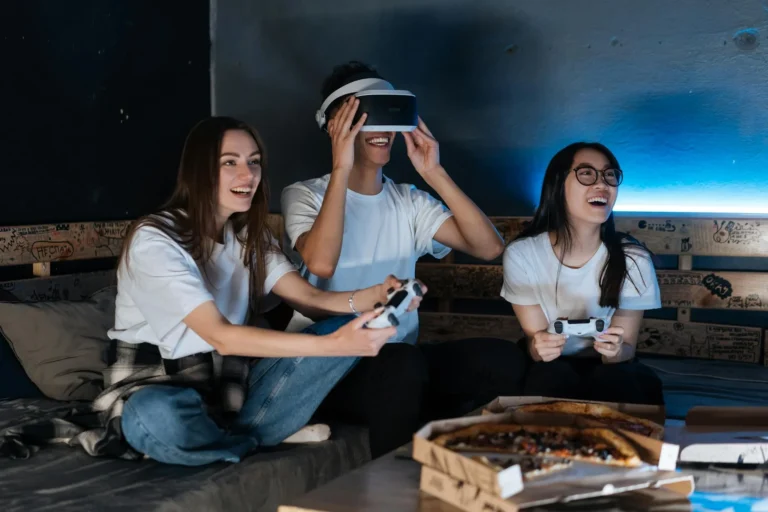
VR motion sickness happens when your eyes see movement but your body does not feel it. Fix it by using comfort mode settings, taking breaks every 20 minutes, and starting with slow-paced games. Most users adapt within a few sessions of regular play.
In flat games, movement is handled by a joystick with no consequences. In VR, the wrong locomotion system causes immediate discomfort. Your vestibular system expects your body to match what your eyes see — when it does not, you feel sick.
Two locomotion types dominate VR development:
- Teleport: Player points at a destination and jumps there instantly. No motion sickness. Less immersive.
- Smooth locomotion: Player moves continuously using a thumbstick. More natural. Higher sickness risk for new users.
The best VR games offer both and let the player choose. Your free locomotion assets should support both modes from the start.
What Are the Best Free Locomotion Assets for Unity?
Free Unity VR assets on the Asset Store cover locomotion, hand tracking, UI systems, physics, and full starter kits. Most are MIT or Unity Personal licensed, meaning you can use them in commercial projects. Always check the license before shipping a product.
1. Unity XR Interaction Toolkit (Built-in)
The XR Interaction Toolkit ships with Unity and includes a complete locomotion system. The Locomotion System component handles both teleportation and smooth movement. The Teleportation Provider and Continuous Move Provider components are ready to use with just a few clicks in the Inspector. This is the starting point for all VR locomotion in Unity.
Pros
- Free and officially supported by Unity
- Works on all major VR platforms
- Teleport and smooth movement included
- Active documentation and community
Cons
- Requires setup knowledge to configure
- Less polish than paid locomotion assets
Window > Package Manager > Unity Registry > XR Interaction Toolkit > Install. Then enable the Starter Assets sample for pre-configured locomotion examples.
2. Unity VR Starter Template
Unity’s official VR Starter Template is a complete Unity project you can create from Unity Hub when starting a new project. It includes a pre-configured XR Rig, working teleportation, smooth locomotion, and grabbable objects in a sample scene. For beginners, this is the fastest path to a working VR locomotion setup — no manual configuration needed.
Pros
- Everything pre-configured
- Working sample scene included
- No Asset Store downloads needed
- Great starting point for any VR project
Cons
- Harder to add to existing projects
- Sample scene needs cleanup for production
3. VR Movement System (Free Version)
Several community-developed free locomotion packs on the Unity Asset Store extend beyond teleport and smooth movement. Look for free locomotion assets that include climbing, swimming, or crouching support — these add significant depth to action VR games without requiring paid upgrades. Always check the asset’s last update date and Unity version compatibility before downloading.
Pros
- Includes movement types beyond XRI defaults
- Community tested and reviewed
- Often includes documentation
Cons
- Quality varies by publisher
- May require Unity version matching
- Less consistent support than official packages
Teleport vs Smooth Movement: Which to Use?
When comparing VR headsets, look at three things: resolution (higher is clearer), tracking (inside-out is better for Pakistan because no base stations needed), and game library (Meta Quest has the largest with 500+ titles). Import cost adds 20-30% to any price in PKR.
| Locomotion Type | Motion Sickness Risk | Immersion | Best For |
|---|---|---|---|
| Teleport Recommended Default | None | Medium | All audiences, first-time users |
| Smooth locomotion | Moderate to high | High | Experienced VR users |
| Room-scale walking | None | Highest | Small-scale environments |
| Dash / blink movement | Low | Medium-High | Action games |
Always offer both teleport and smooth locomotion and let the user choose in settings. Never force smooth locomotion on players who may be new to VR.
What Is Performance Tips for Pakistan Developers?
There are three types of VR headsets: phone VR (uses your smartphone, PKR 1,500-5,000), standalone VR (built-in processor, best balance — Meta Quest 3S at PKR 90,000+), and PC VR (requires gaming PC, highest quality but expensive). Standalone is recommended for most Pakistan buyers.
If you are targeting Meta Quest or other standalone headsets, keep your locomotion system lightweight. Avoid physics-based movement that runs every frame. Use Unity’s built-in XRI locomotion providers which are already optimised for mobile VR chipsets.
- Use the Continuous Move Provider for smooth locomotion — it is GPU-friendly
- Keep teleport arc raycasts simple — avoid expensive physics raycasts on every frame
- Test locomotion at 72 Hz and 90 Hz — frame drops are felt immediately in movement
- Add a snap-turn option — smooth turning causes more sickness than smooth movement
Which Asset to Start With?
To set up VR at home in Pakistan you need: a cleared 2×2 metre space, a stable WiFi connection for downloads, and your Meta Quest paired to the phone app. First-time setup takes about 20 minutes. No PC or wires are needed for standalone headsets.
Recommended Locomotion Setup for New VR Projects
- Starting fresh: Use the Unity VR Starter Template from Unity Hub — it includes everything pre-built
- Adding to existing project: Install XR Interaction Toolkit and enable the Starter Assets sample for ready-to-use locomotion components
- Need advanced movement: Search the Unity Asset Store for free locomotion packs with climbing or swimming — filter by free and check last update date
- Always include: Both teleport and smooth movement options so users can choose what works for them
For a complete overview of all the best free Unity VR assets across every category, see our best free Unity VR assets guide for 2026.
For more information, visit Unity XR documentation.